

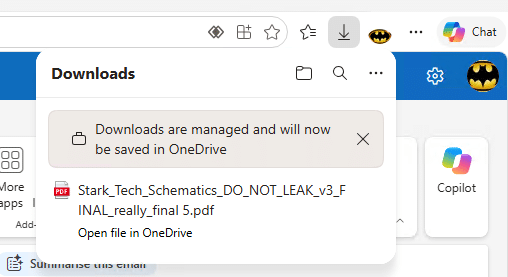
Microsoft Edge version 150+ introduces Protected Downloads, a new capability for Windows MAM that automatically redirects downloaded files to OneDrive for Business. This helps organizations keep corporate data protected without preventing users from accessing the files they need.
Let’s go through the setup step by step and configure Protected Downloads in Microsoft Edge.
To implement Protected Downloads, we need to configure three different parts of the Microsoft platform:
- Microsoft Intune – configure the Windows MAM App Protection Policy that protects the browser session and corporate data.
- Conditional Access – define which users and unmanaged Windows devices should be required to use the protected MAM experience.
- Microsoft Edge for Business – enable the Protected Downloads capability.
Together, these three components determine who gets the protected experience, how Edge handles corporate data, and where downloaded files are allowed to go.
1. Configure Windows MAM in Intune
The first step is to configure a Windows App Protection Policy in Microsoft Intune. This policy defines how corporate data can be handled inside the protected Microsoft Edge work profile.
In the Intune admin center, go to:
Apps > App protection policies > Windows
Create a new policy or modify an existing Windows MAM policy that targets Microsoft Edge.
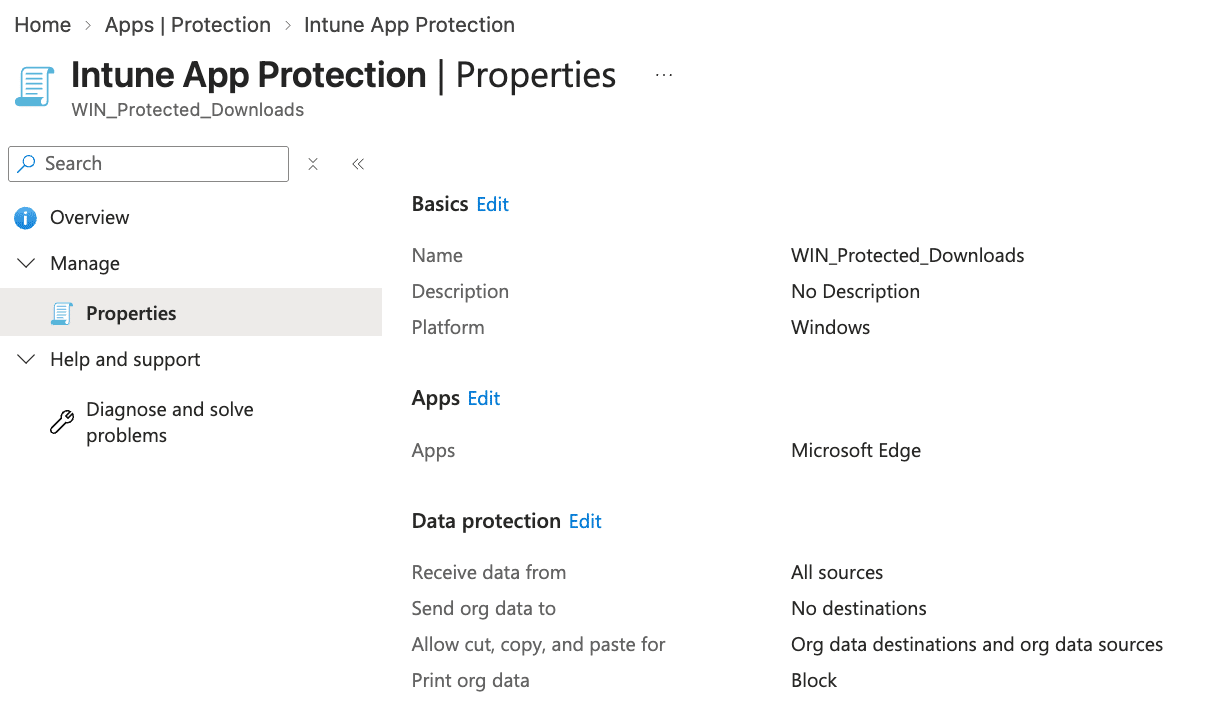
Under Data protection, configure:
- Receive data from: All sources
- Send org data to: No destinations
- Allow cut, copy, and paste for: Org data destinations and org data sources
- Print org data: Block
2. Configure Conditional Access
Next, we need Conditional Access to ensure that users accessing corporate resources from unmanaged Windows devices use the protected Edge experience.
Create a Conditional Access policy targeting the users and resources you want to protect. For a pilot, I recommend starting with a dedicated user group before expanding the policy.
Under Conditions, configure:
- Device platforms: Windows
- Filter: Exclude filtered devices from policy –
IsCompliant = True - Client apps: Browser
Under Grant, select Require app protection policy.
This connects Conditional Access with Windows MAM. When a targeted user accesses corporate resources from an unmanaged Windows device, access is required to take place through an application protected by the Intune App Protection Policy.
3. Enable Protected Downloads in Microsoft Edge
The final piece is configured through the Microsoft Edge management service.
Go to:
Microsoft 365 admin center > Settings > Microsoft Edge
- Create a new Configuration policy targeted to the intended users.
- Ensure Windows 10+ is selected for platforms and policy type is Cloud.
- No settings need to be added when creating the policy.
- Under Assignments, assign the Edge configuration policy to the same users targeted by your Windows MAM configuration.
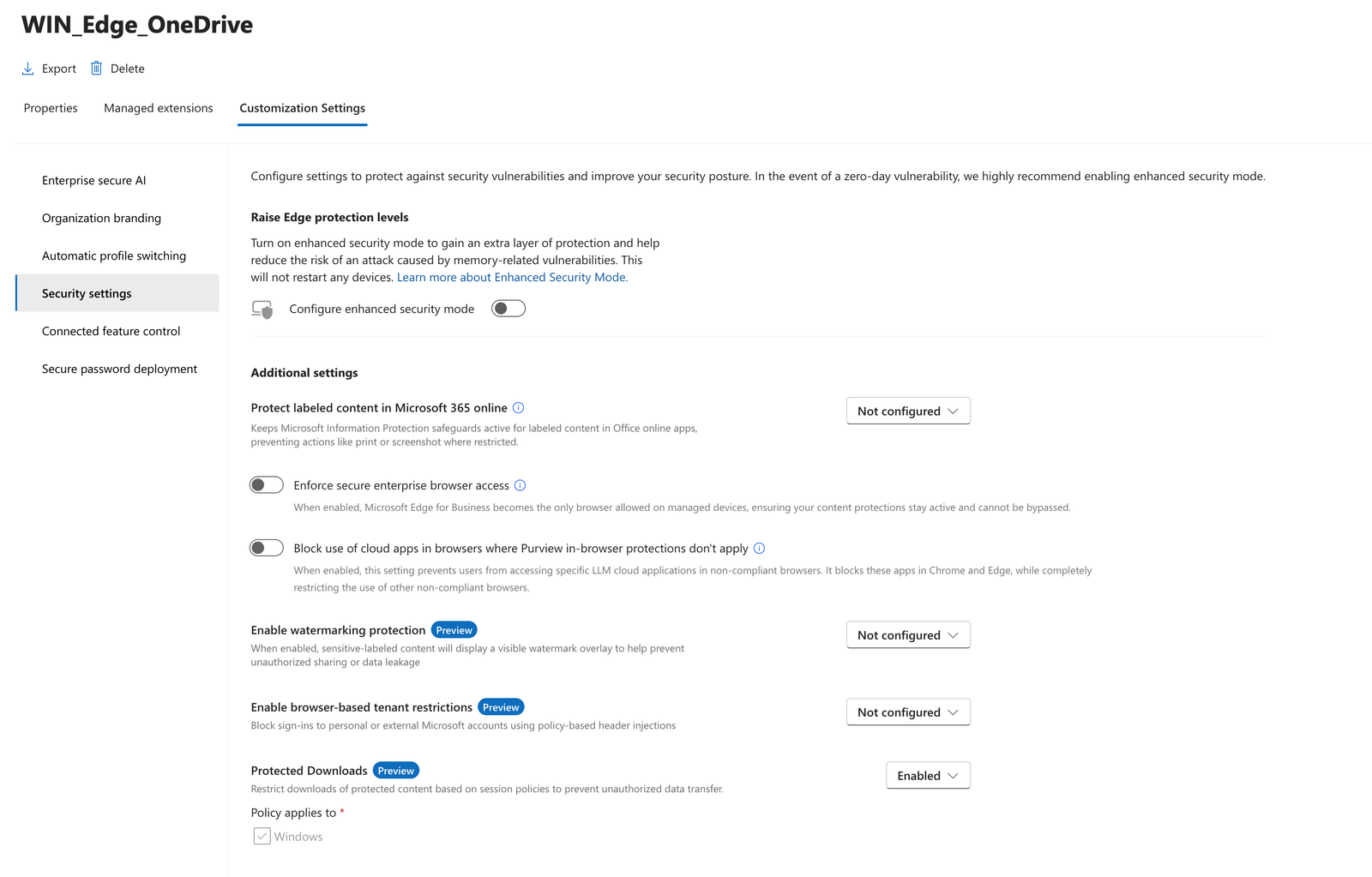
After the configuration policy has been created and saved, open it and navigate to Customization Settings → Security Settings.
- Enable Protected Downloads.
Users will now have protected downloads to OneDrive for Business enabled.
Two approaches to protecting data on unmanaged devices
Protected Downloads isn’t the only way Microsoft can protect corporate data when users access resources from unmanaged devices.
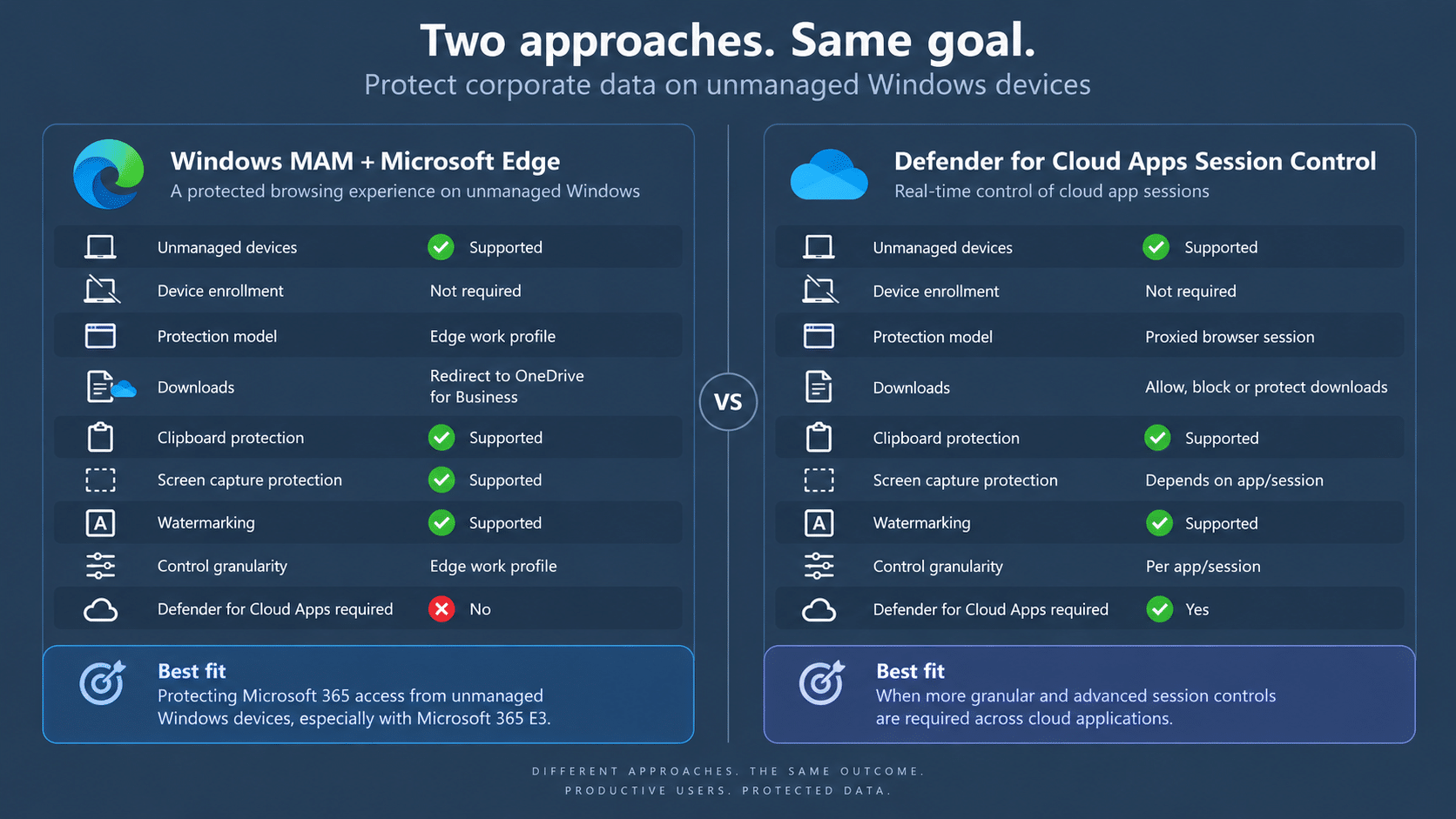
Organizations using Defender for Cloud Apps Session Control can achieve similar outcomes through real-time session controls. However, the two technologies take very different approaches to protecting the data.
The comparison below shows some of the key differences.
Is Windows MAM a replacement for Defender for Cloud Apps?
Not necessarily.
Defender for Cloud Apps provides more granular session controls across cloud applications and allows organizations to control activities such as downloads, uploads, copy/paste, and other actions through a proxied browser session.
Windows MAM takes a different approach. Instead of proxying the session, Microsoft Edge becomes the protected boundary, with Intune App Protection controlling how corporate data can be handled.
For organizations primarily looking to protect Microsoft 365 access from unmanaged Windows devices, Windows MAM can therefore be an interesting alternative, especially if they already have Microsoft 365 E3 and don’t require the more advanced session controls available with Defender for Cloud Apps.